
This is the second post in my AI for Life Design series - a beginner-friendly guide to using AI to improve your everyday life. If you missed the first post, I’d recommend starting there to get the full picture of what the series is about. In case you’re wondering, I’ve been using AI to assist me writing this series…it’s only right to practise what I preach!
If you’ve heard people talking about ChatGPT and wondered what all the fuss is about - or if you’ve downloaded the app, had a quick look, and then quietly closed it again because you weren’t sure what to do - this post is for you.
Today we’re going to do two things: meet the main AI tools that everyone’s talking about, and get you set up and ready to use one of them. By the end of this post, you’ll have ChatGPT open on your phone or laptop, ready to go. No tech skills required.
First - What Even Is AI?
Artificial intelligence sounds intimidating, but the tools we’re talking about here are really just very clever chat programs. You type something - a question, a request, an idea - and they respond. Like texting a knowledgeable friend who has read almost everything ever written and is available 24 hours a day.
That’s it. There’s no code to write, no complicated interface to learn. If you can type a text message, you can use AI.
Meet The Main Players
There are a handful of AI tools that dominate the conversation right now. Here’s a plain-English introduction to each:
ChatGPT Made by a company called OpenAI, ChatGPT is the name most people have heard first - and for good reason. It launched in late 2022 and essentially introduced the world to this kind of AI. It’s versatile, easy to use, and has a generous free tier. If someone says “I’ve been using AI,” there’s a good chance they mean ChatGPT.
Claude Made by a company called Anthropic, Claude is the AI tool I’ve personally fallen in love with. It’s known for feeling particularly natural and conversational - less like talking to a computer, more like talking to a thoughtful person. It’s also free to get started with. I’ll be writing a dedicated post about Claude soon, but it’s well worth having on your radar.
Gemini Google’s AI tool. If you already use Gmail, Google Docs, or Google Drive, Gemini is increasingly woven into those tools - which means you may already have access to it without realising. It’s a solid choice and free to use.
Microsoft Copilot Built into Windows 11 and the Edge browser, Copilot is Microsoft’s AI offering (powered by the same technology behind ChatGPT). If you’re a Windows user, you may already have a Copilot button sitting in your taskbar.
Are They Very Different From Each Other?
Less than you’d think. The honest answer is that all four of these tools can do similar things - answer questions, help you write, summarise information, brainstorm ideas. At a beginner level, the differences are subtle. Think of it like different brands of smartphone: they all make calls and run apps, but each has its own feel.
So don’t get too caught up in choosing the “right” one. The best AI tool is whichever one you actually use.
Where To Start: ChatGPT
For a first step, I recommend ChatGPT - simply because it’s the most widely used, which means there’s the most beginner-friendly help, tutorials, and content out there if you ever get stuck. Let’s get you set up.
Setting Up ChatGPT On Your Desktop
- Open your web browser and go to chatgpt.com
- Click Sign up
- Choose how you’d like to create your account - you can use your email address, or sign in directly with your existing Google or Apple account (this is the quickest option)
- If you signed up with email, check your inbox for a verification email and click the link inside
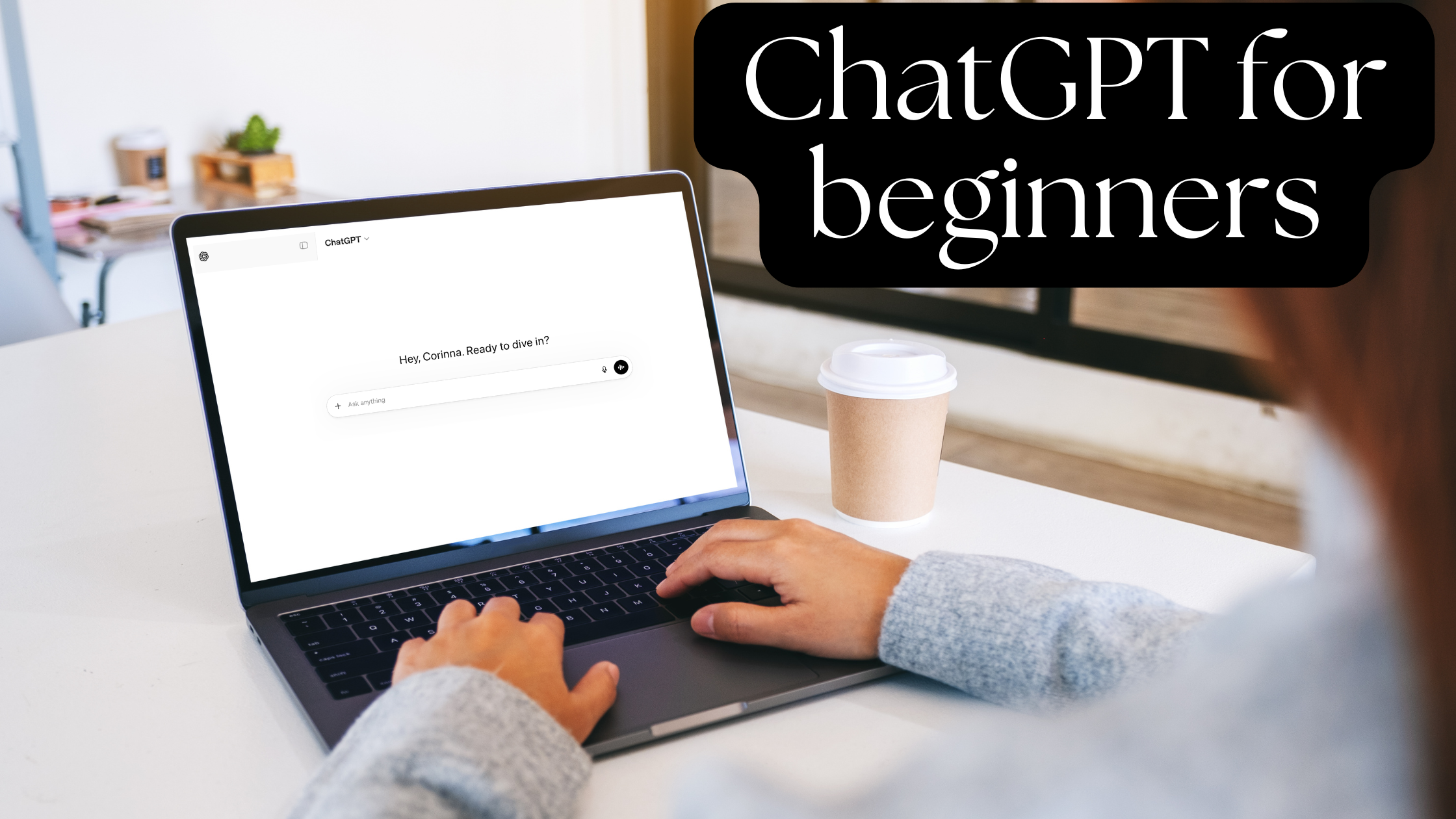
- Once you’re in, you’ll see a simple chat window with a text box at the bottom
That’s it. You now have a free ChatGPT account.
The free tier gives you access to GPT-4o, which is genuinely excellent - you don’t need to pay anything to get real value from it. (GPT-4o is the name of the AI model - think of it as the engine powering your conversations. OpenAI regularly updates and releases new models, but the free version gives you access to a very capable one.)
Setting Up ChatGPT On Your Phone
- Open the App Store (iPhone) or Google Play Store (Android)
- Search for ChatGPT
- Download the official app - it’s made by OpenAI and it’s free. Look for the black and white logo to make sure you have the right one, as there are imitation apps in the stores
- Open the app and sign in with the account you just created, or create a new one directly from the app
- You’re in
I use ChatGPT on both my phone and my laptop and find both equally easy to use. The phone app is brilliant for those little moments - waiting for the kettle to boil, sitting on a train - when you want to quickly ask something or try something out.
Your Very First Conversation
The blank chat window can feel daunting at first. Here are a few things you could type right now to get a feel for it - just copy one of these into the text box and press send:
- “Explain what you can help me with, as if I’m a complete beginner”
- “Give me 5 ideas for a healthy packed lunch that takes less than 10 minutes to make”
- “I’m trying to read more books but keep forgetting to make time for it. Can you help me come up with a simple habit I could build into my day?”
Don’t worry about getting the wording perfect. Just type naturally, as if you were texting a friend. The more specific you are about what you want, the more useful the response - but even vague questions will get you somewhere.
What’s Next
Now that you’re set up, the fun begins. In my next post in this series I’ll be sharing real, everyday ways to use AI that can genuinely improve your daily life - from saving time on tasks you find tedious, to using it as a thinking partner when you’re making decisions.
If you’re not already signed up to my newsletter, pop your details in below and I’ll let you know the moment it’s live.
Have you just set up ChatGPT for the first time? Or have you been using it a while - what’s been your most useful moment with it? I’d love to hear in the comments below…
Enjoyed this post? Share it!
Previous & Next Posts
In my PREVIOUS post I introduced my new AI For Life Design series.
In my NEXT post I share 12 everyday ways to use AI to make your life easier.
